Quick start
Set up your ToadTurret Lite
Keep your phone or computer nearby and have your WiFi details ready.
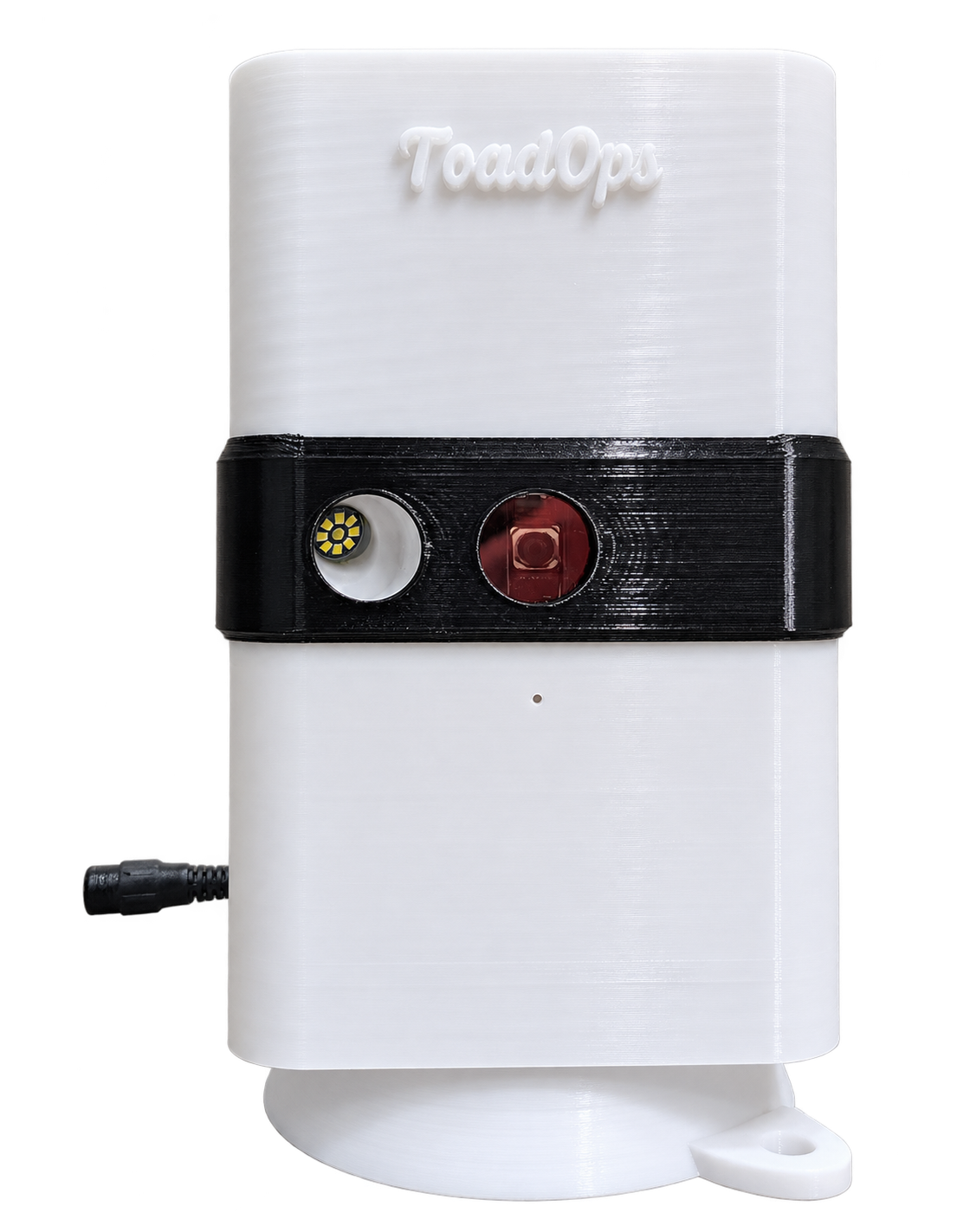
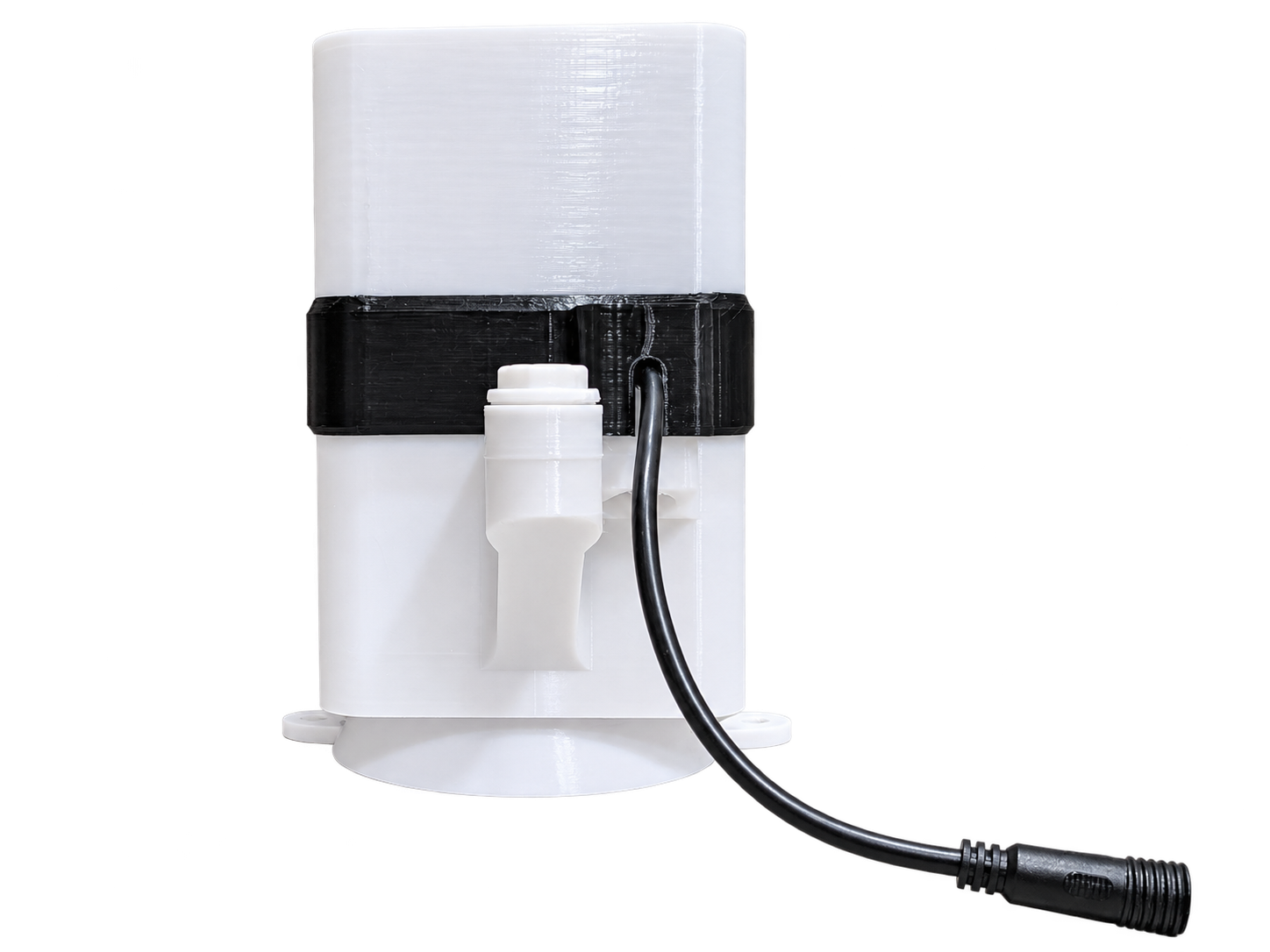
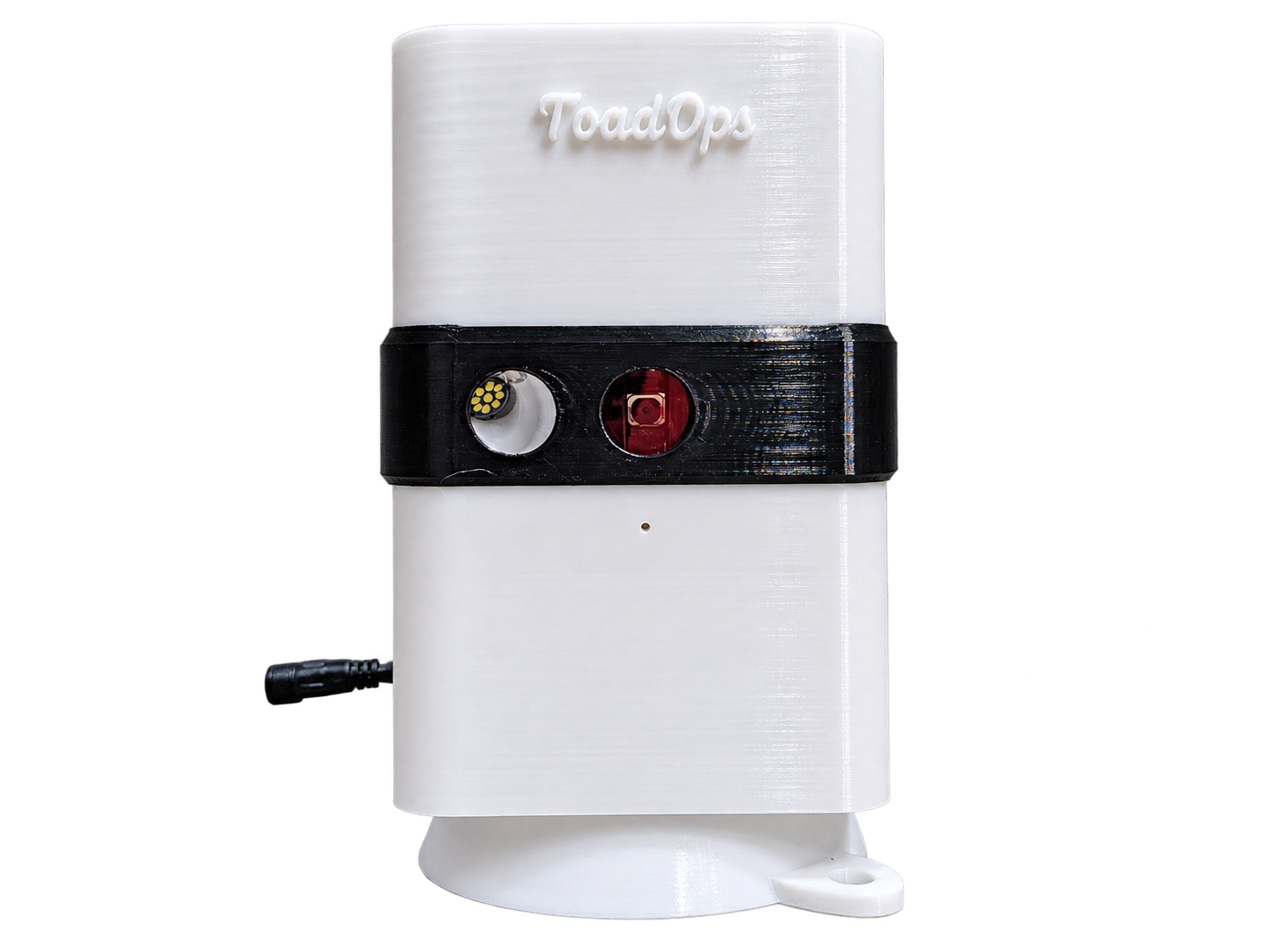
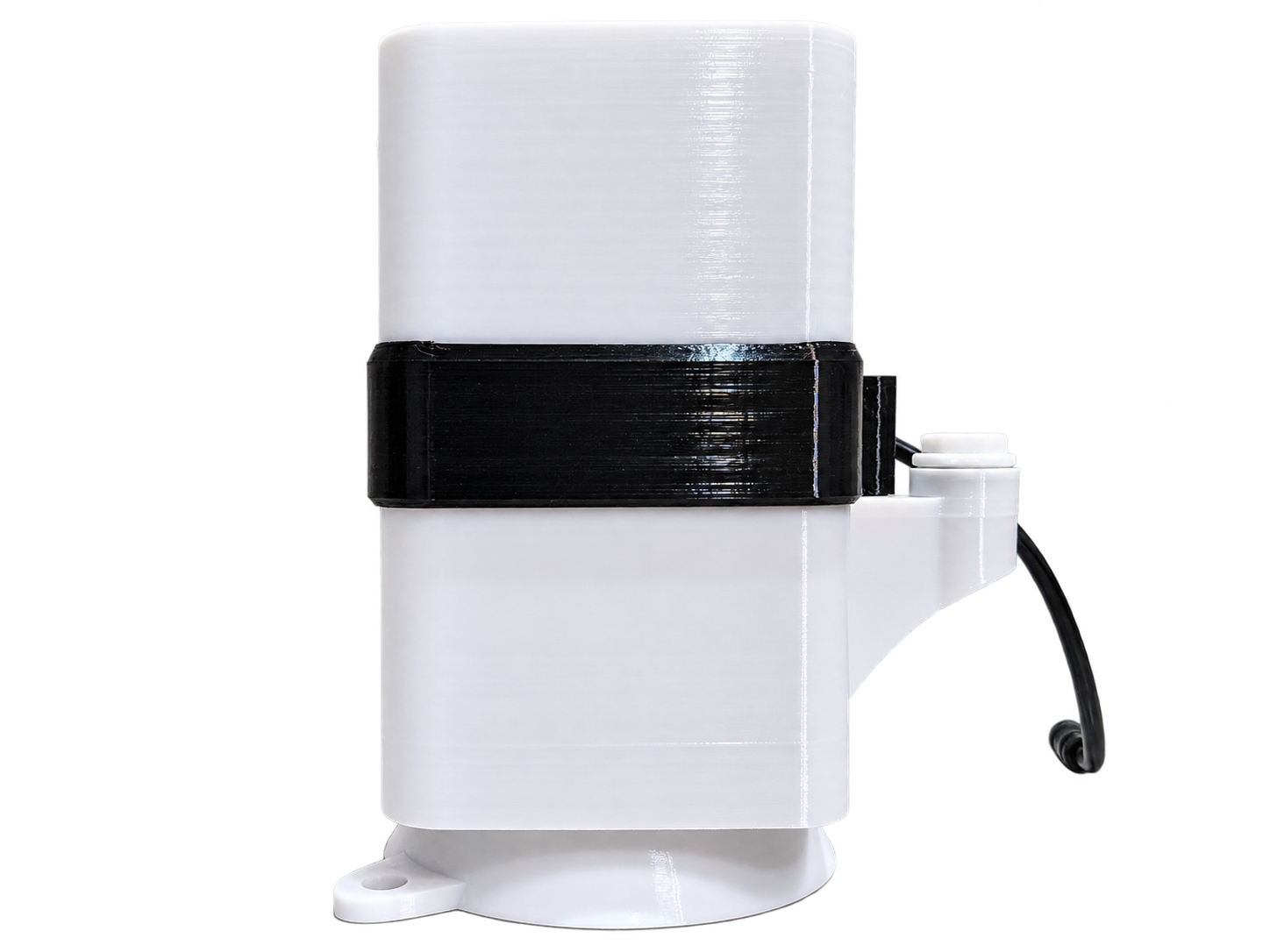
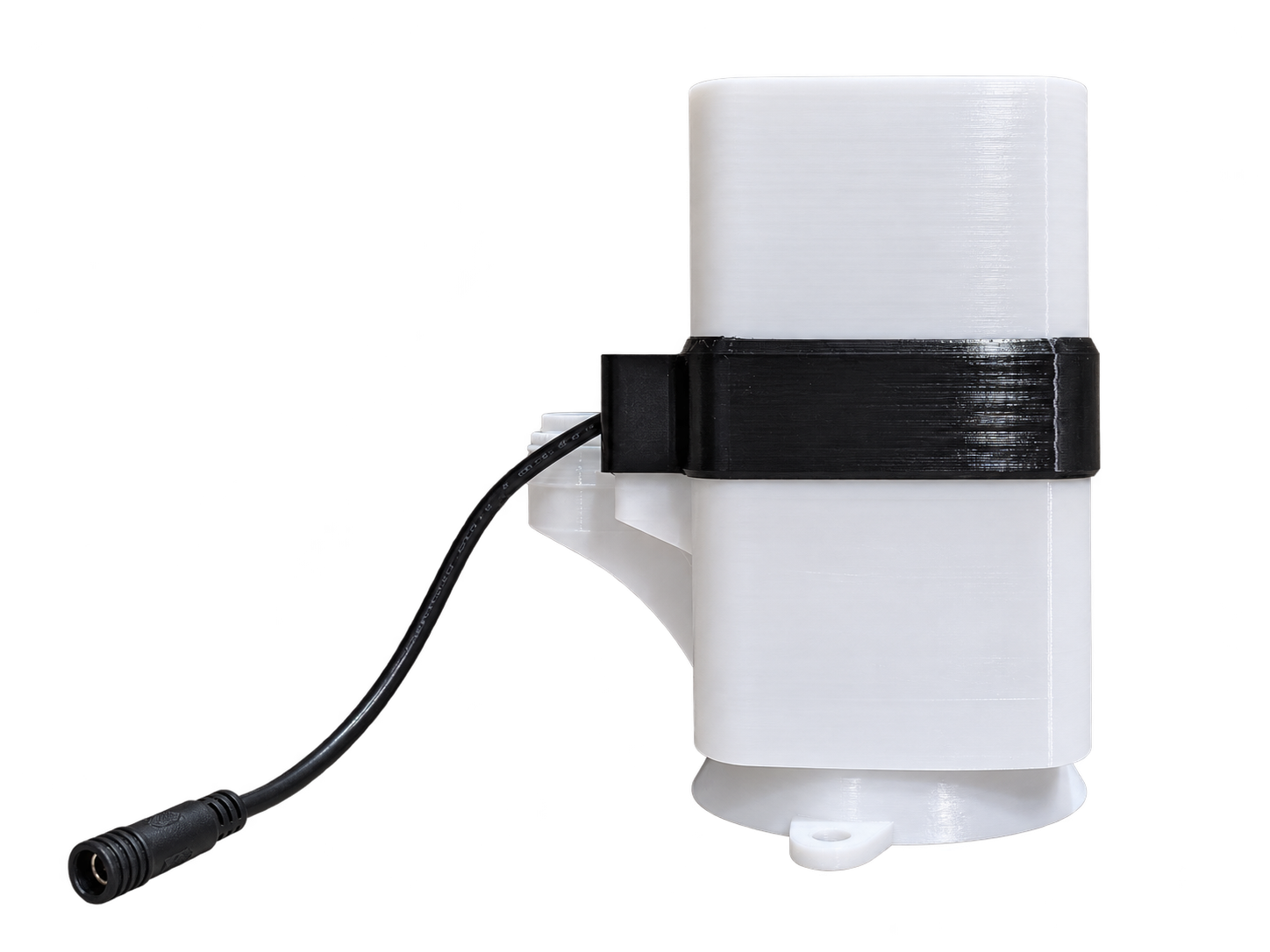
Find the controls
Power
Connect a suitable 12V 3A supply to the power lead coming from the back of your Lite.
Setup
The setup button is under the left-hand rear cover when viewed from behind. Follow the light signals in step 3.
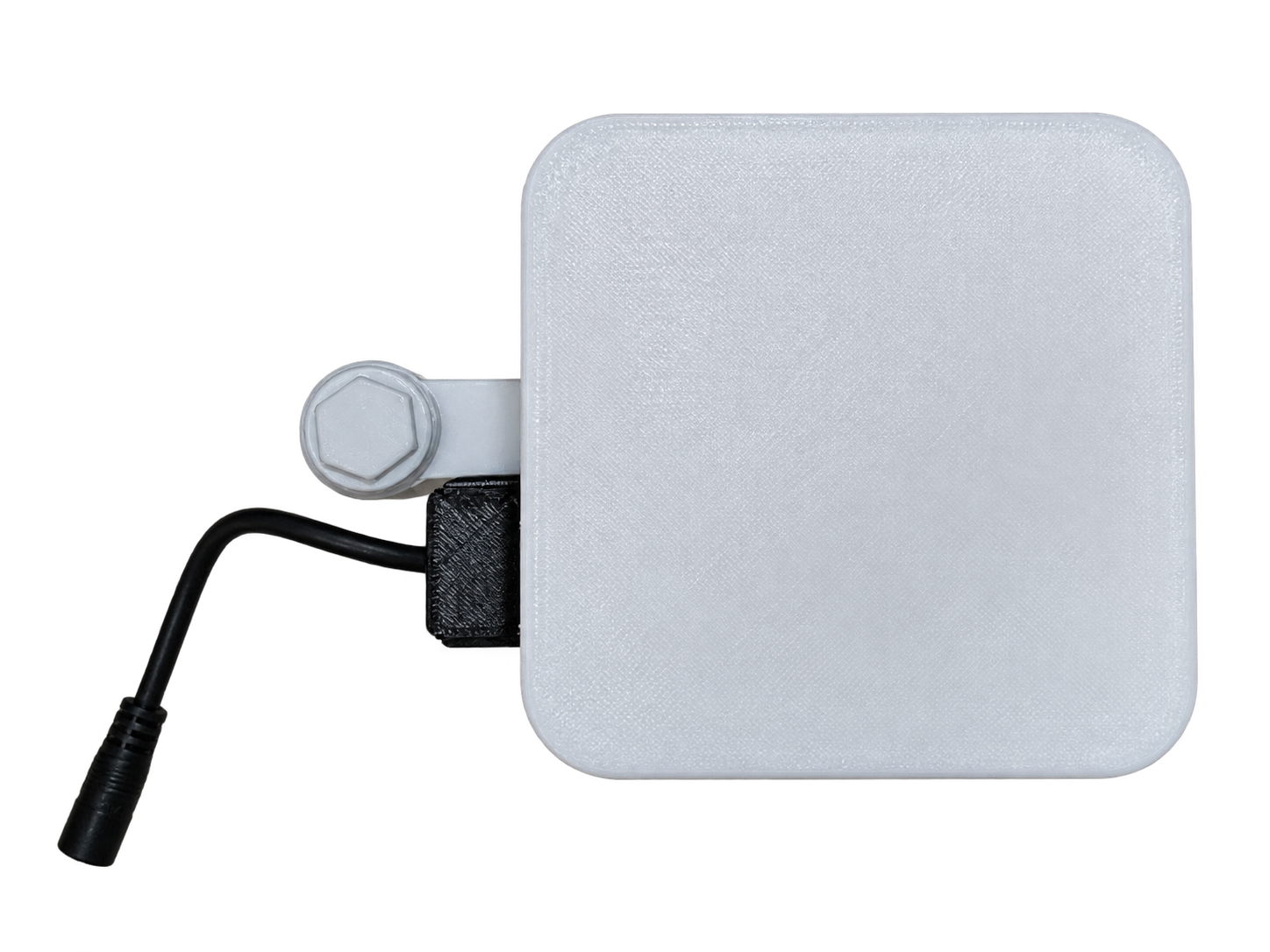
Fill
Unscrew the bolt seal in the centre of the rear to access the solution fill point.
Lite needs an internet connection. Its AI analysis runs in the cloud. Keep it connected to 2.4GHz WiFi with internet access wherever you install it.
Have these ready
- Bluetooth turned on
- Your 2.4GHz WiFi name and password, with internet access
- The ToadOps app or app.toadops.com.au
Follow the setup wizard
- Open ToadOpsSign up or sign in in the ToadOps app or at app.toadops.com.au, then open Devices and choose Add Device.
- Choose ToadTurret LiteSelect the Lite model, choose a device name and dashboard colour, then tap Create device.
- Start Bluetooth setupHold the rear button for 1.5 seconds, then release after five rapid flashes confirm Bluetooth is ready. The lights pulse while you hold it.
- Find your deviceTap Find your device and select your Lite’s TOAD Bluetooth name. In a browser, choose it in the Bluetooth pairing window.
- Connect to WiFiChoose your 2.4GHz network or enter its name, enter the password, then tap Connect to Wi-Fi. Keep the device powered on while it connects.
- Set a location (optional)Place a pin where your Lite will be installed and tap Save & finish, or choose Skip for now.
- Wait for the connectionWhen Wi-Fi setup complete appears, leave the app open. It opens device details when Lite comes online or the countdown ends.
- Check it is onlineConfirm the device is online in device details. At its outdoor position, check that WiFi still reaches it and the camera has a clear view of the ground.
Can’t connect?
Five rapid flashes: Bluetooth is ready. Scan again with your phone nearby. Three slow flashes: Bluetooth failed to start; release the button and try the hold again.